 Audio for Motion: Lifetime Plans Are Live: Get 20% OFF on Plus plan with Coupon - AUDIO20
  Back to blogs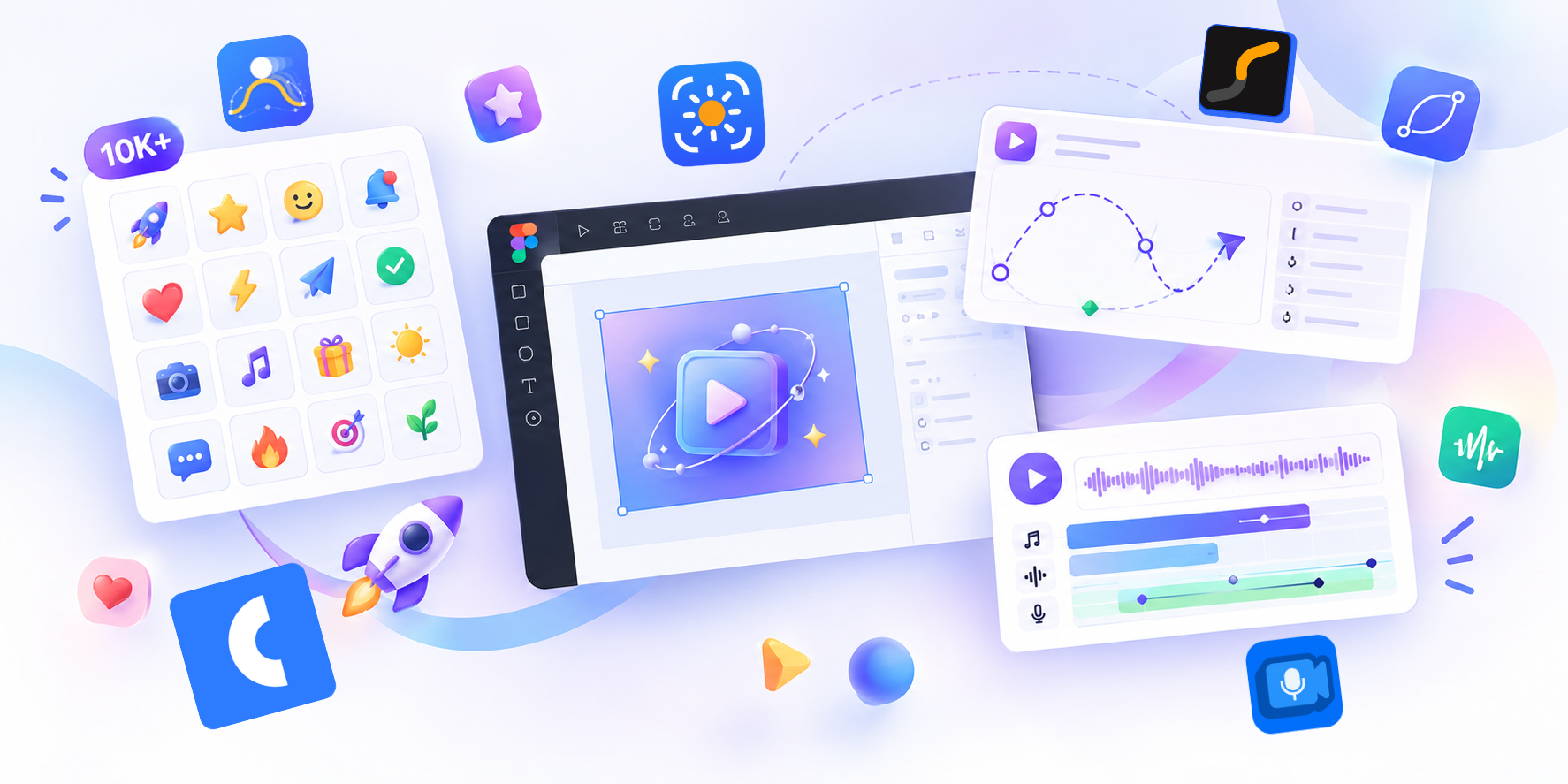
A great design can catch someone's attention but a great animation can make them remember it.
Think about the apps and websites you love using. A button responds when you hover over it, a card smoothly appears as you scroll and an icon transforms to communicate an action. These small details make digital experiences feel more intuitive, engaging and alive.
That's the power of motion design. And with Figma's growing motion design capabilities, designers can go beyond static screens to create richer and more expressive experiences without constantly switching between tools.
Let's explore how you can make your Figma designs more dynamic with animations, interactive elements and sound.
1. Start with Purpose, Not Just Movement
The best animations aren't added simply because they look cool. They help users understand what's happening.
A button animation can provide feedback after a click. A transition can guide attention from one screen to another. A subtle loading animation can make waiting feel more natural.
Before animating an element, ask yourself: What does this movement communicate?
Start with a few practical ideas:
-
Use micro-interactions to make buttons and controls feel responsive.
-
Animate transitions to connect screens and guide the user's attention.
-
Use motion to highlight important information.
-
Keep animations consistent with your product's visual identity.
The goal is to make your design feel more natural, not more complicated.
2. Bring Your Designs to Life with Figma Motion
Static mockups are great for communicating layout and visual hierarchy but motion helps demonstrate how a design behaves over time.
With Figma's motion design capabilities you can explore animated icons, transitions, moving elements and more expressive visual experiences.
Start with simple animations before moving to complex sequences. Experiment with position, rotation, scale, opacity and timing to understand how different properties affect the final result.
For example, a notification icon might gently bounce when a new message arrives, while a product card could move into view to create a more engaging presentation.
If you're looking to expand your animation workflow, Motion for Figma by Crafttor offers a library of 10,000+ animated icons to help you add movement to your designs without creating every animation from scratch.
3. Learn from Real Websites with Capture Motion
Some of the best motion design inspiration comes from websites. You might discover a beautiful scroll animation, a creative hero transition or a subtle hover effect that would work perfectly in your next project.
The challenge is recreating what you've seen. Screen recordings can show the animation but reproducing its timing and movement manually can take considerable effort.
Crafttor's Capture Motion helps bridge that gap by letting designers capture supported website animations through a Chrome extension and bring them into their Figma Motion workflow.
Instead of relying only on visual references you can explore captured motion details and use them as a starting point for your own experiments.
It's a useful workflow for designers who want to study how websites move, explore new animation ideas and spend less time recreating references from scratch.
4. Add Sound to Make Motion More Engaging
Here's something designers sometimes overlook: motion doesn't have to be visual.
A subtle click can make an interaction feel more responsive. A soft whoosh can emphasize a transition. A cinematic impact can make a product reveal feel more dramatic.
When used thoughtfully, sound gives motion another layer of feedback and personality.
With Audio for Motion by Crafttor, you can bring music, sound effects and voiceovers into your Figma Motion workflow. You can arrange multiple audio tracks, trim and split clips, adjust volume, apply fades and synchronize audio with your animation.
Imagine presenting a product animation with a subtle sound effect when a feature appears, background music that builds toward the reveal, and a voiceover explaining the product.
Instead of exporting a silent animation and finishing the audio elsewhere, you can build a more complete audiovisual experience within your design workflow.
5. Bring Strokes, Paths, and Icons to Life with Path Motion
Sometimes, a simple movement isn't enough. You want a line to draw itself, a logo to reveal its shape, or a loading spinner to follow a smooth, continuous motion. That's where Path Motion for Figma Motion comes in.
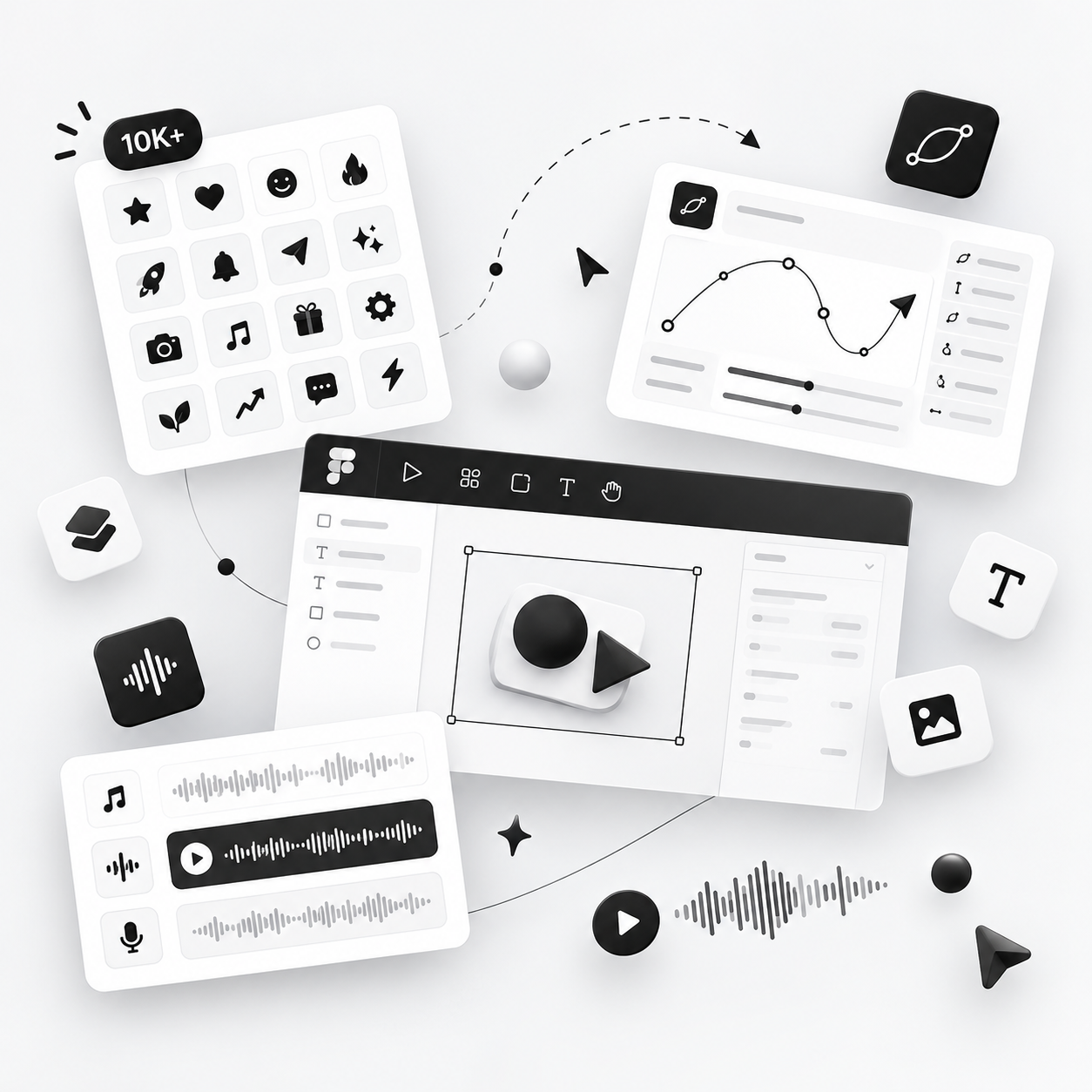
Path Motion lets you create native path and stroke animations directly inside Figma using real Figma Motion keyframes. Instead of relying on Smart Animate workarounds or a separate playback engine, it writes editable motion tracks directly into Figma's native Motion panel.
With its Trim Path capabilities you can animate strokes drawing on, erasing off or revealing and disappearing in a single pass. You can also create travelling arc spinners, chasing loaders, continuous rotations and looping animations with adjustable easing and repeat cycles.
Whether you're animating an SVG line illustration, revealing a logo, creating an animated icon or building a polished loading indicator, Path Motion gives you greater control over how your designs move.
The result? More expressive motion design, less manual keyframe work and animations you can continue editing directly inside Figma.
6. Keep Your Animations Smooth and Meaningful
More movement doesn't automatically mean better design. Poorly timed or excessive animations can distract users and make interfaces feel slow.
Here are a few principles worth following:
-
Keep it consistent: Use similar timing and easing for related interactions.
-
Respect attention: Animate important elements without competing with the main content.
-
Think about performance: Avoid unnecessarily complex effects that make an experience feel sluggish.
-
Use sound selectively: Audio should enhance the experience not overwhelm it.
-
Design for accessibility: Consider reduced-motion preferences and provide appropriate alternatives when necessary.
Always test your animations in context. A transition that looks impressive on its own might feel distracting when combined with the rest of the interface.
7. Build a Complete Motion Design Workflow
A practical workflow doesn't need to be complicated.
-
Design: Start with your screens, components and visual direction in Figma.
-
Animate: Add movement to elements that benefit from transitions or feedback.
-
Explore: Use website references and Capture Motion to discover new animation approaches.
-
Enhance: Add suitable sound effects, music or voiceovers with Audio for Motion.
-
Refine: Adjust timing, easing, audio levels and transitions until everything feels cohesive.
-
Export: Prepare your final animation for presentations, demos or other supported delivery formats.
This approach helps you move from a static mockup to a polished motion experience without losing sight of the original design goal.
Final Thoughts
Motion design is no longer just a finishing touch. It's an important part of how designers communicate ideas, improve interactions and create memorable digital experiences.
By combining purposeful animation, inspiration from real websites and carefully chosen sound you can make your Figma projects feel more expressive and engaging.
You don't need to animate everything. Start with one interaction, improve one transition or add sound to one meaningful moment. Small improvements can make a surprisingly big difference.
Ready to go beyond static designs? Explore Crafttor's motion design tools and discover new ways to bring your creative ideas to life.
Explore Crafttor: https://www.figma.com/@crafttordesign