 Audio for Motion: Lifetime Plans Are Live: Get 20% OFF on Plus plan with Coupon - AUDIO20
  Back to blogs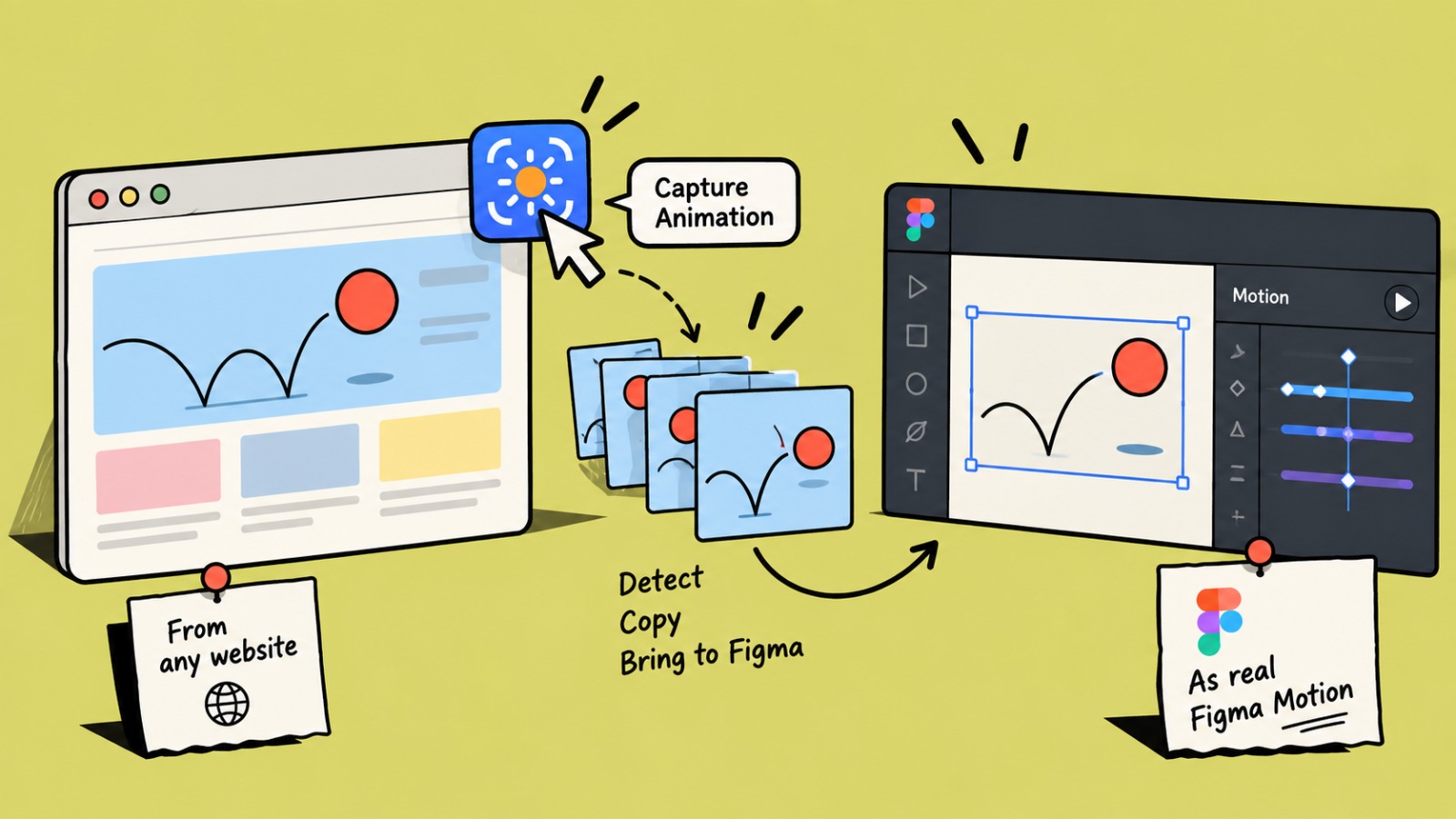
Have you ever landed on a website and thought, “How did they make that animation?”
Maybe it’s a button that reacts perfectly on hover. A page transition that feels unusually smooth. A card that moves into place as you scroll. Or a complex GSAP animation that you’d love to recreate in Figma.
The problem is that seeing an animation and rebuilding it are two very different things.
You can record a video, take screenshots, inspect the page, dig through JavaScript, or try to recreate the timing by eye. But none of those approaches give you an editable animation that you can actually work with.
That’s the idea behind Capture Motion.
Capture the animation, not just the screen
Capture Motion lets you capture real animations from websites and recreate them as editable timelines inside Figma Motion.
Instead of watching an animation and trying to guess its keyframes, timing, delays, and easing, you can capture what is actually happening and bring that motion into your design workflow.
The result is something you can continue editing.
You can move keyframes around, change properties, adjust timing, experiment with easing, and make the animation your own.
No screenshot tracing. No video reference sitting beside your Figma file.
Just the motion.
Why this is useful
Motion design is often easier to understand when you can see how an animation is built.
Imagine you find a website with a really nice hover interaction. You want to understand how it works and recreate something similar for your own product.
Normally, you might spend 20-30 minutes trying different values until the animation feels right.
With Capture Motion, you can capture the interaction and bring it into Figma Motion. Now you have something tangible to inspect and modify.
This makes it useful for more than just copying an animation.
It can be a learning tool, a prototyping tool, and a faster way to explore motion ideas.
Capture different types of website interactions
Animations don't always start when a page loads.
Some happen when you hover over an element. Others start after a click or when an element enters the viewport during scrolling.
Capture Motion is designed to work with different types of website interactions, including:
-
Page-load animations
-
Hover effects
-
Click interactions
-
Scroll-triggered animations
-
Complex animation sequences
So if the animation only appears after an interaction, you can trigger it and capture the motion as it happens.
It works with the technologies websites actually use
Modern websites use a mix of animation technologies. Capture Motion supports several of the most common ones, including:
-
CSS animations
-
CSS transitions
-
Web Animations API (WAAPI)
-
GSAP
-
Lottie
-
Canvas animations with fallback support
This is important because the animation you see in a browser isn't necessarily built with one standard approach.
A simple button might use a CSS transition, while a landing page could be running a fairly complex GSAP timeline.
Capture Motion aims to make that underlying motion accessible from the design side.
From browser to Figma Motion
This is probably the part that makes the workflow most interesting for designers.
Once an animation is captured, you can recreate it inside Figma Motion as editable layers and timelines.
Instead of having a video reference, you have actual animation properties to work with.
You can then:
-
Edit keyframes
-
Change animation timing
-
Adjust delays
-
Modify properties
-
Experiment with easing
-
Extend or shorten sequences
-
Adapt the animation to your own design
The captured animation becomes a starting point rather than a finished recording.
And you don't have to stop at Figma
Sometimes you want the opposite workflow.
You may start by exploring an animation in Figma, but eventually need to hand it over to a developer.
Capture Motion can also export animation information for development workflows, including CSS, GSAP, and React / Framer Motion.
That means the same animation exploration can move between design and development instead of being recreated from scratch on both sides.
A useful workflow with AI
There’s another interesting way to use captured animation data.
You can copy the animation data and give it to an AI assistant such as ChatGPT or Claude.
For example, you could capture an interaction from a website and ask an AI assistant to recreate it as HTML, CSS, or JavaScript.
Instead of describing the animation with words like:
“Make this card slide up, fade in, and slightly scale when it appears.”
you can provide actual animation information as context.
AI can then work from something much closer to the original motion.
This makes Capture Motion a useful bridge between visual inspiration, design, code, and AI.
Built with privacy in mind
Capture Motion doesn't require an account to get started.
Captured animation data stays on your device, and the tool is free to use.
That makes it easy to experiment with without creating another account or sending your captured animation data somewhere just to inspect it.
Who is Capture Motion for?
Capture Motion can be useful for anyone who works with interface animation.
Motion designers can use it to study how existing interactions behave.
UI/UX designers can quickly explore motion ideas for their own products.
Figma Motion users can turn real browser interactions into editable timelines.
Frontend developers can inspect animation behavior and use exported data as a starting point.
Design systems teams can study interaction patterns and create more consistent motion guidelines.
And for creative developers, it can be a quick way to move between browser experiments and design tools.
A different way to learn motion
One of the things we like about this workflow is that it changes how you learn animation.
Instead of starting with a blank timeline and asking, “What values should I use?”, you can start with something that already works.
Capture it.
Look at the timing.
Look at the keyframes.
Change something.
See what happens.
Then build your own version.
That makes real websites a kind of motion-design reference library.
Try Capture Motion
The web is full of great motion design. There’s no shortage of inspiration.
The hard part has always been turning that inspiration into something you can actually work with.
Capture Motion is built to make that step easier - from seeing an animation in a browser to exploring and editing it inside Figma Motion.
Capture it. Understand it. Change it. Make it yours.
If you're working with motion in Figma, give it a try and see what you can capture.
Have an animation you’ve always wanted to recreate? Capture Motion might be a good place to start.