 Audio for Motion: Lifetime Plans Are Live: Get 20% OFF on Plus plan with Coupon - AUDIO20
  Back to blogs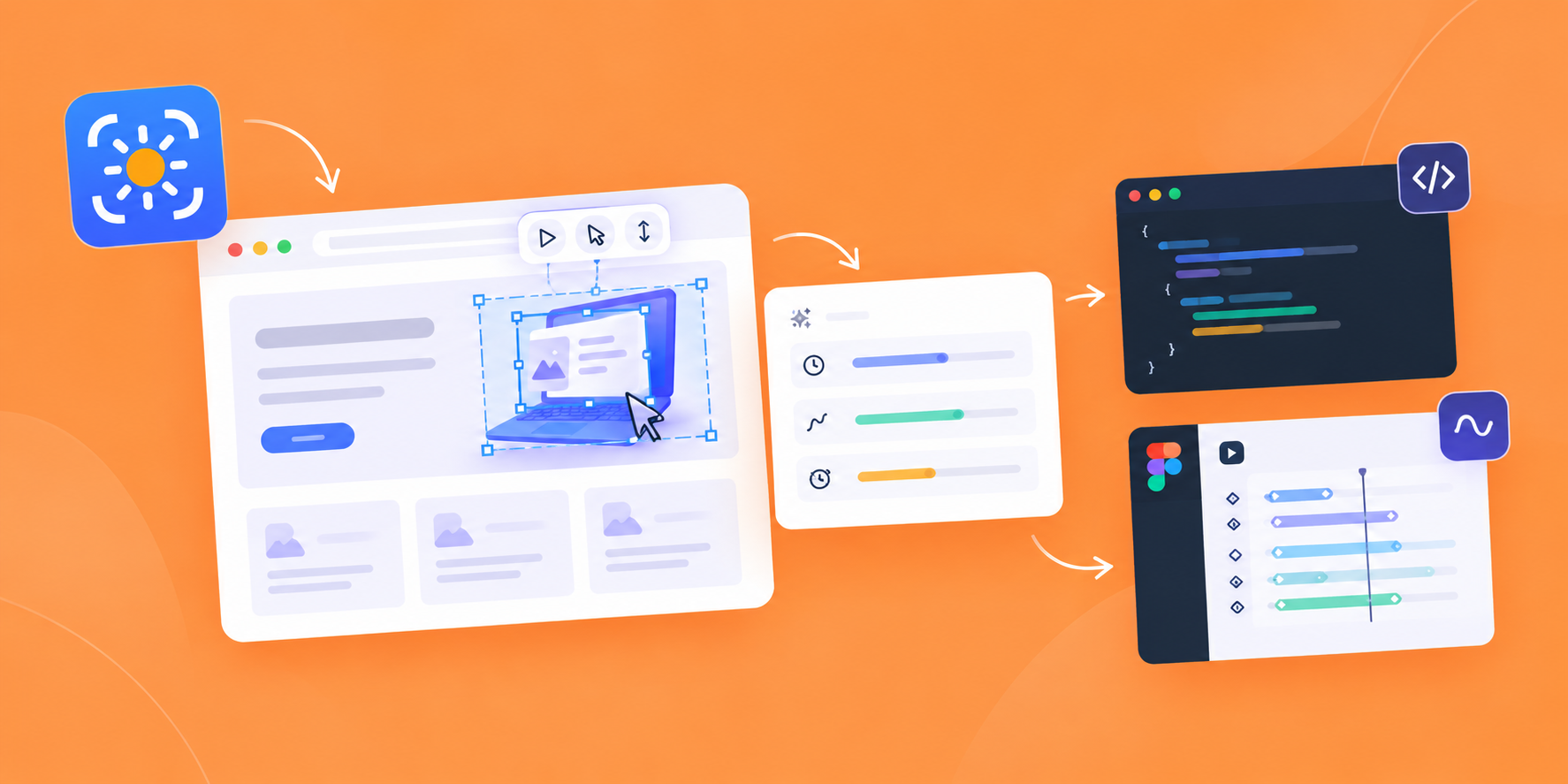
Finding a great animation on a website is easy. Recreating it is usually the difficult part. You might see a smooth hover effect, a scroll interaction or a small transition that works perfectly but figuring out exactly how it was built can take quite a bit of time. Capture Motion offers a practical way to take that website animation and actually work with it.
Capture the Animation You Want
The workflow starts directly in Chrome. Select an animated element on a website and Capture Motion looks at how that element actually moves in the browser. It can detect animations triggered on page load, hover, or when an element comes into view while scrolling. Instead of capturing only a screenshot or recording a video, it captures the animation itself along with details such as duration, easing, delay and keyframes.
Turn Website Motion Into Code
One useful part of the extension is the ability to export the captured animation as code. You can get CSS, React with Framer Motion, or GSAP snippets from the same capture. This can be handy when a developer finds an interaction they want to recreate or when a designer wants to explore how a particular motion could be implemented in a real project. Rather than starting from zero, you have the captured animation as a starting point.
Bring the Animation Into Figma Motion
Capture Motion also connects the browser workflow with Figma through its companion plugin. A captured animation can be pasted into the Figma plugin, where the element and its motion are rebuilt as an animated Figma layer. This makes it possible to inspect the interaction inside Figma, adjust the motion and use it as part of a prototype or design exploration. It is quite different from simply placing a video in Figma because the goal is to keep the animation editable.
A Useful Workflow With AI Tools
There is also a Copy for LLM option for people who use tools such as ChatGPT or Claude during development. The capture is copied together with an instruction that explains what needs to be reproduced. You can paste it into an AI assistant and use the captured information to generate an HTML, CSS or JavaScript version of the animation. It removes the need to manually explain every little detail about the motion you are trying to recreate.
Why Capturing the Real Animation Matters
What makes the workflow interesting is that Capture Motion isn't simply looking at an element at one particular moment. It attempts to reconstruct the animation sequence itself including transitions that may have already played before the extension was opened. For designers and developers who regularly collect website references this turns animation inspiration into something much more useful. Instead of saving a video and trying to figure out the rest yourself, you can capture the motion and continue working with it in code, Figma Motion or an AI-assisted workflow.