 Audio for Motion: Lifetime Plans Are Live: Get 20% OFF on Plus plan with Coupon - AUDIO20
  Back to blogs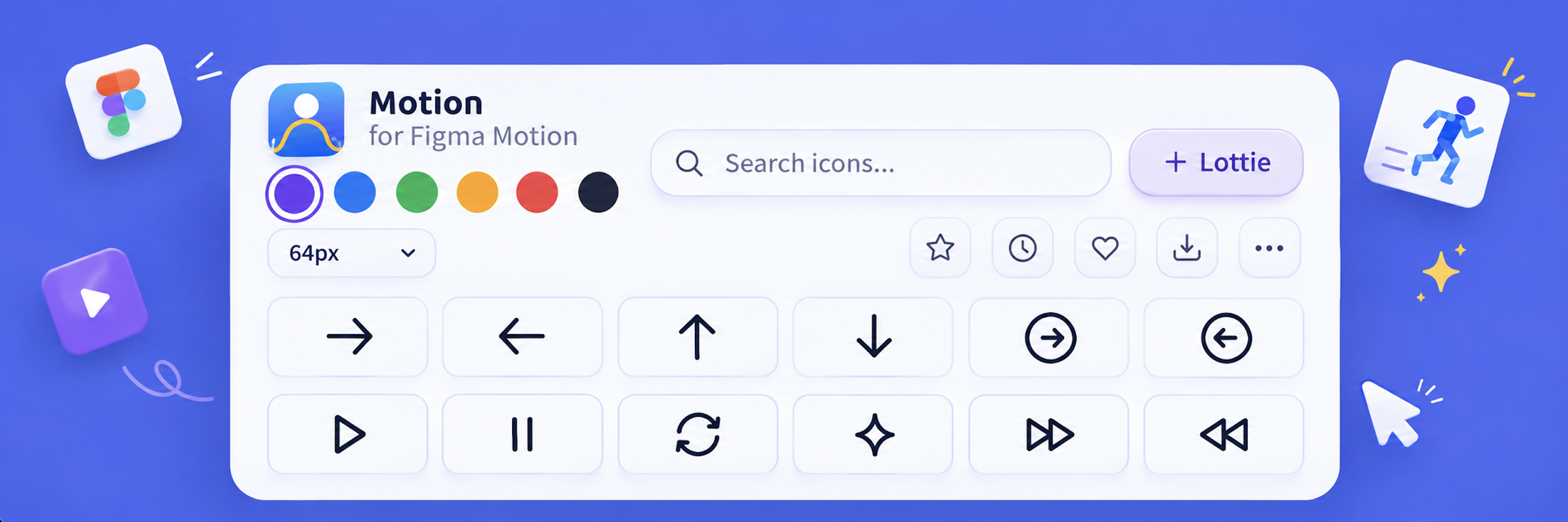
Adding motion to a Figma design can make a product experience feel significantly more polished. But creating even a simple animation often means setting up keyframes, adjusting timing, managing layers, and repeating the same work across multiple screens.
Motion for Figma Motion makes that process much faster.
Motion for Figma Motion is a Figma plugin that provides a curated library of hundreds of animated icons that you can browse, preview, and add directly to your Figma canvas. Instead of creating every animation from scratch, you can start with a professionally designed animation and customize it for your project.
The animations are not simply videos or flattened assets. They are added as structured Figma Motion animations with editable motion tracks, giving designers more control over how the animation works inside their Figma files.
What Is Motion for Figma Motion?
Motion for Figma Motion is an animation plugin designed for product designers, motion designers, UI designers, and anyone who wants to add polished motion to Figma designs without manually building every animation.
The plugin combines an animated icon library with Figma Motion support.
You can:
-
Browse animated icons.
-
Preview an animation before adding it.
-
Insert the icon into your Figma canvas with one click.
-
Edit the resulting Figma Motion animation.
-
Customize the icon to match your design.
This makes it easier to explore motion ideas while you're already working on your product design.
Why Use Animated Icons in Figma?
Small animations can communicate interaction, feedback, state changes, and product behavior more effectively than static UI elements.
For example, an animated icon can be used for:
-
Button interactions
-
Loading and progress states
-
Success and completion states
-
Empty states
-
Navigation
-
Notifications
-
Onboarding
-
Micro-interactions
-
Product prototypes
-
Marketing and presentation designs
The challenge is that creating these animations manually can take time, especially when a designer needs multiple variations.
An animated icon library gives you a starting point without forcing you to build every motion sequence yourself.
Browse Hundreds of Animated Icons
Motion for Figma Motion gives you access to a curated collection of animated icons directly inside the plugin.
Instead of searching for an animation on another website, downloading an asset, importing it into Figma, and figuring out how to use it, you can explore the library while working on your design.
The workflow is simple:
Browse → Preview → Insert → Customize
This keeps the entire process inside Figma.
Preview Animations Before Adding Them
Choosing an animated icon is easier when you can see how it moves before placing it in your design.
Motion for Figma Motion includes a live animated preview, allowing you to check an icon's motion before inserting it.
This is particularly useful when exploring different animation styles for a product interface.
You can quickly compare animations and choose the one that fits the interaction, visual language, and overall design direction.
Add Editable Figma Motion Animations With One Click
One of the key differences between Motion for Figma Motion and a traditional animated asset library is how the animation is delivered.
The icons are added as structured Figma Motion animations, rather than simply being imported as videos or flattened graphics.
That means the animation can contain editable motion tracks such as:
-
Position
-
Scale
-
Opacity
-
Path morph
These tracks allow designers to work with the animation as part of their Figma design instead of treating it as a separate media asset.
This makes animated icons more useful for prototypes, product concepts, motion studies, and interactive design work.
Figma Motion Tracks Keep Your Animations Editable
Motion design becomes much more useful when designers can adjust it.
With Figma Motion tracks, you can work with the individual properties that control how an icon moves and changes over time.
For example, position keyframes can control movement, scale can create emphasis or transitions, opacity can create entrances and exits, and path morphing can transform one vector shape into another.
Instead of accepting a fixed animation, designers can use these tracks as a foundation and adapt the motion to their own design.
Keep Stroke and Fill Layers Separate
Good animation isn't only about movement. The structure of the design matters too.
Motion for Figma Motion preserves stroke and fill layers separately, helping keep the icon structure clean and easier to style.
This means you can adapt the visual appearance of an animated icon to better match your product's design system rather than working with a single flattened asset.
Whether you need to change colors, adjust visual styling, or integrate an icon into an existing interface, maintaining separate layers gives you more flexibility.
Animated Icons That Scale With Your Figma Frame
Designers work across many different frame sizes - from mobile screens and web applications to large desktop interfaces and presentations.
Motion for Figma Motion is designed to work with different frame sizes. Animated icons can scale to fit your design, making it easier to use the same motion asset across different layouts.
This can be especially useful when building multiple screens or exploring responsive product concepts.
Motion for Figma Motion vs. Creating Animations From Scratch
Creating an animation manually gives you complete control, but it also takes time.
For simple or commonly used animations, starting from an existing animated icon can be much more efficient.
With Motion for Figma Motion, you don't have to begin with an empty timeline every time.
Instead, you get a ready-made animation that you can preview, insert, and customize.
This makes the plugin particularly useful when you need to:
-
Explore motion concepts quickly
-
Add micro-interactions to product designs
-
Create animated prototypes
-
Build presentation-ready designs
-
Add visual feedback to UI states
-
Experiment with motion without starting from zero
The goal isn't to replace custom motion design. It's to remove repetitive work when a ready-made animation can get you most of the way there.
Who Is Motion for Figma Motion For?
Product Designers
Product designers can use animated icons to communicate interactions, states, and product behavior directly within their designs.
UI/UX Designers
For UI/UX designers, animated icons can add personality and feedback to interfaces without requiring every animation to be created manually.
Motion Designers
Motion designers can use the library as a starting point for animation exploration and customize the underlying motion tracks when needed.
Design Teams
Teams can use a curated animation library to make it easier to explore consistent motion across product screens and prototypes.
Anyone Designing in Figma
You don't need to be a dedicated motion designer to benefit from animation. If you already work in Figma and want to bring more movement into your designs, Motion for Figma Motion gives you an easier starting point.
How to Add an Animated Icon to Figma
Using Motion for Figma Motion takes only a few steps.
Step 1: Open the plugin
Launch Motion for Figma Motion while working on your Figma file.
Step 2: Browse the animation library
Explore hundreds of animated icons available inside the plugin.
Step 3: Preview an icon
Play the live preview to see how the animation behaves before adding it to your design.
Step 4: Insert the animation
Choose the icon and add it to your Figma canvas with one click.
Step 5: Customize the animation
Use the available Figma Motion tracks and layers to adapt the animation to your design.
This workflow turns what could be a repetitive animation task into a much faster design process.
Why Motion Matters in Modern Product Design
Static screens are useful for communicating layout and visual hierarchy, but motion can communicate something static design cannot: how an interface behaves.
A transition can show what happens after an interaction. A loading animation can communicate progress. A morphing icon can demonstrate a change in state.
For product teams, this can make prototypes easier to understand and design reviews more meaningful.
The challenge is balancing the value of motion with the time required to create it.
That's where reusable, editable animation assets can help.
Make Motion Part of Your Existing Figma Workflow
The biggest advantage of Motion for Figma Motion is that you don't need to completely change the way you work.
You don't have to create an animation in a separate application, export it, and then bring a static result back into your design.
You can discover the animation, preview it, and add it while working directly in Figma.
That makes motion feel less like a separate production step and more like another part of the design workflow.
Bring More Motion Into Your Figma Designs
Motion doesn't have to mean spending hours building keyframes for every interaction.
With Motion for Figma Motion, you can start with a curated library of animated icons, preview them inside Figma, and add structured animations to your canvas with a single click.
Browse the animation library, find an icon that fits your design, and customize the motion to make it yours.
Less repetitive keyframing. More time designing.