 Audio for Motion: Lifetime Plans Are Live: Get 20% OFF on Plus plan with Coupon - AUDIO20
  Back to blogs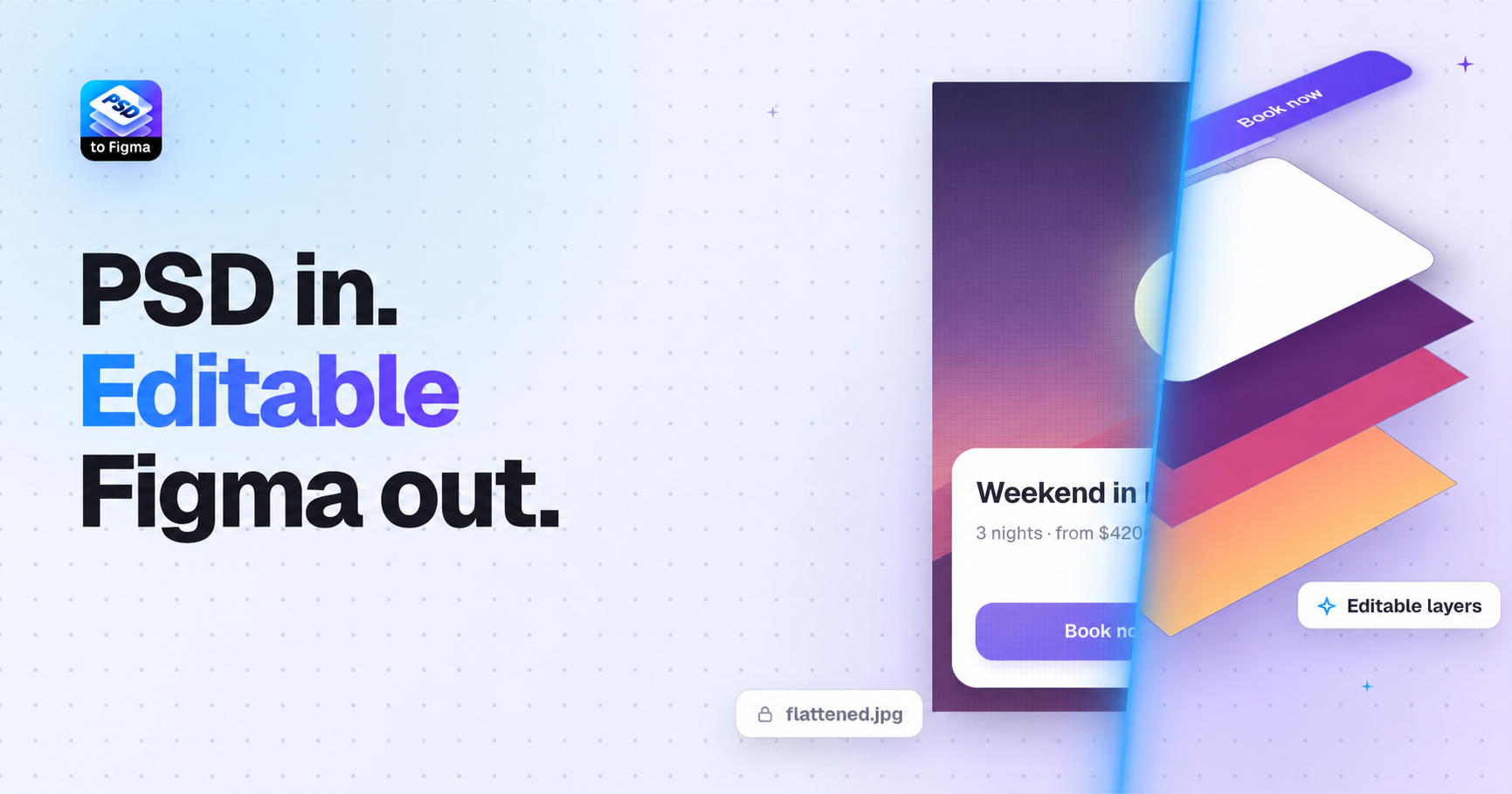
Designers often work across Photoshop and Figma but moving files between the two tools can be time-consuming. Rebuilding layers, recreating text and fixing visual effects manually can turn a simple design handoff into hours of extra work.
PSD to Figma by Crafttor simplifies this process by letting you import Photoshop files into Figma as editable layers and export Figma designs back to Photoshop as layered PSD files. Whether you're migrating existing designs or collaborating with teams using different tools, this plugin helps streamline your workflow without rebuilding everything from scratch.
What Is the PSD to Figma Plugin?
PSD to Figma is a Figma plugin that converts Photoshop (PSD) and PSB files into Figma designs and exports Figma frames back to Photoshop-compatible files.
The plugin follows a freemium model, allowing users to get started with available credits and upgrade to a paid plan for additional usage. A Crafttor account is required to use the plugin and users can choose from monthly, yearly and lifetime plans according to their needs.
Instead of simply importing a flattened screenshot, PSD to Figma offers multiple conversion modes to help preserve editable text, vector shapes, groups, masks, gradients and supported layer effects.
Key Features of PSD to Figma by Crafttor
1. Import PSD Files as Editable Figma Layers
Convert one or multiple PSD or PSB files into Figma designs. Each imported file becomes its own page, making it easier to organise and manage multiple projects.
Depending on your selected import mode, you can preserve live text, vector shapes, groups, opacity, blend modes, visibility, gradients and supported layer effects. Layer groups become frames, while vector masks and clipping masks are recreated where supported.
2. Choose the Right Import Mode
Different projects require different levels of editability and visual accuracy. PSD to Figma offers several import modes to suit your workflow:
-
Fully Editable: Convert supported text, shapes, masks, gradients and layer styles into native Figma layers.
-
Editable Text: Keep text editable while importing other elements as images.
-
Layers as Images: Preserve individual layer appearances while retaining the layer structure.
-
Flattened Mode: Import the entire design as a single image.
These options let you choose the balance between editability, visual fidelity and simplicity that works best for your project.
3. Preserve Layer Effects and Design Structure
Moving a Photoshop design into Figma doesn't have to mean losing its visual details. The plugin carries over supported drop shadows, inner shadows, glows, strokes and colour or gradient overlays.
It also preserves layer names, opacity, visibility and blend modes where supported. Repeated smart objects can become a component with instances, helping maintain consistency across your design.
You can also choose a white, transparent or custom-colour background when importing your files.
4. Export Figma Designs Back to Photoshop
Need to continue editing in Photoshop or share your design with a Photoshop-based team? PSD to Figma also supports Figma to PSD conversion.
Select one or more frames and export them as layered PSD files that open in Photoshop. In editable mode, supported text remains as real text layers, alongside groups and supported shadow layer styles.
You can also choose a pixel-based layers mode or export a flattened image. Additional options include 1x, 2x, and 3x export scales, support for very large canvases through PSB and the ability to include hidden layers.
5. Understand Conversion Limitations
Photoshop and Figma handle certain design features differently. Effects without a direct Figma equivalent, such as Bevel & Emboss, warped text and adjustment layers, may require approximation.
The plugin provides an import report identifying elements that could not be reproduced exactly, rather than silently ignoring them. If a font in your PSD isn't available in Figma, the text falls back to Inter and the missing font is reported.
This makes it easier to review your imported design and make any necessary adjustments.
How to Convert PSD to Figma
Getting started is straightforward:
-
Install and open PSD to Figma by Crafttor from the Figma Community.
-
Log in to your Crafttor account to access the plugin.
-
Drag and drop one or more PSD or PSB files into the plugin.
-
Choose your preferred import mode and use your available credits for conversion.
-
Review the imported design and check the conversion report for any approximated elements.
To convert Figma to PSD, select the frames you want to export, configure your export settings and click Export PSD.
Understanding Credits and Pricing
PSD to Figma uses a credit-based usage system. Available credits determine how many conversions you can perform, helping you manage usage according to your design requirements.
Users can start with the credits available to their account and upgrade when they need more conversion capacity. Crafttor offers multiple paid plan options to accommodate different usage patterns:
-
Monthly plans: Suitable for designers who need conversion credits on a recurring monthly basis.
-
Yearly plans: Designed for users who prefer annual billing.
-
Lifetime plans: A one-time purchase option for users who prefer lifetime access under the applicable plan terms.
Choose a plan based on your expected workload, conversion needs and preferred billing cycle. Check the plugin's current pricing page for the latest plan details and credit allowances.
Who Should Use PSD to Figma?
PSD to Figma is useful for:
-
UI/UX designers moving existing Photoshop designs into Figma for editing and prototyping.
-
Graphic designers working across Photoshop and Figma.
-
Design teams sharing editable files with colleagues who use different tools.
-
Freelancers and agencies managing client projects across multiple design applications.
-
Product teams looking to streamline design handoffs and reduce repetitive manual work.
Whether you're migrating an old design library or collaborating with a team that still uses Photoshop, the plugin helps simplify the transition.
Simplify Your Photoshop-to-Figma Workflow with Crafttor
Switching between Photoshop and Figma shouldn't mean rebuilding your designs from scratch. With PSD to Figma by Crafttor, you can import Photoshop files as editable Figma layers, export Figma frames as layered PSD files and keep your design workflow moving.
With flexible import modes, supported layer-effect preservation, a credit-based usage system and monthly, yearly and lifetime paid plans, you can choose an option that fits your workflow.
Ready to get started? Install PSD to Figma by Crafttor from the Figma Community and simplify your Photoshop-to-Figma workflow.
Try PSD to Figma: https://www.figma.com/community/plugin/1687850435434962649/psd-to-figma-by-crafttor